



 AbduDzyn
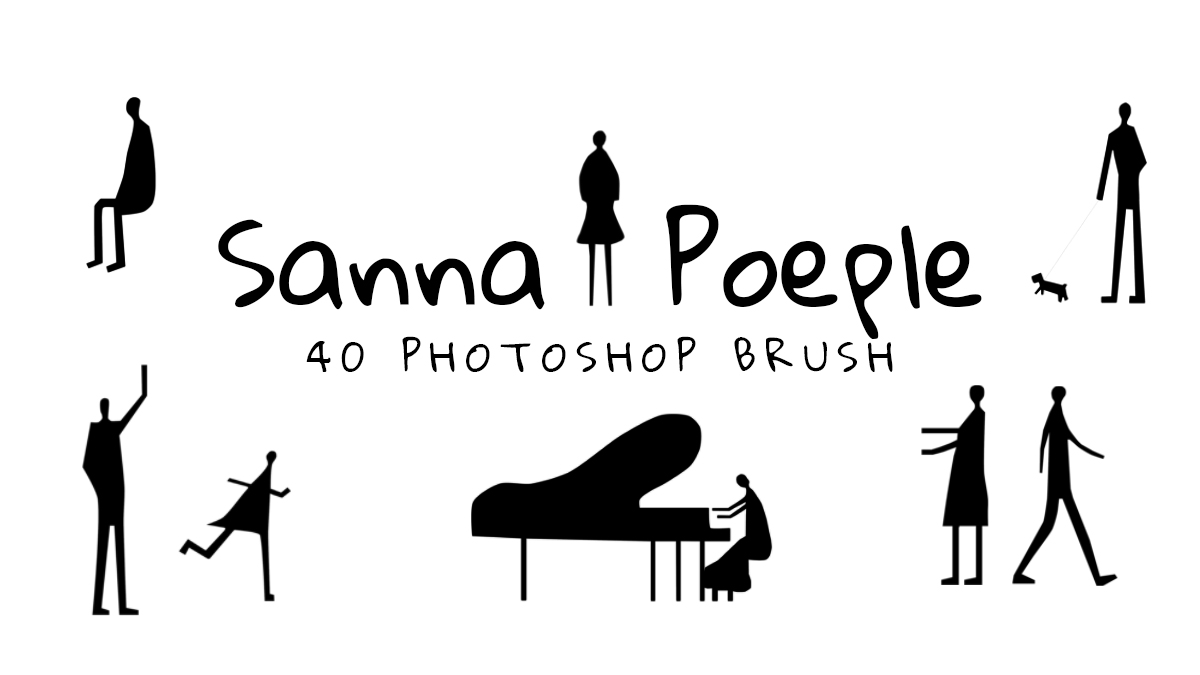
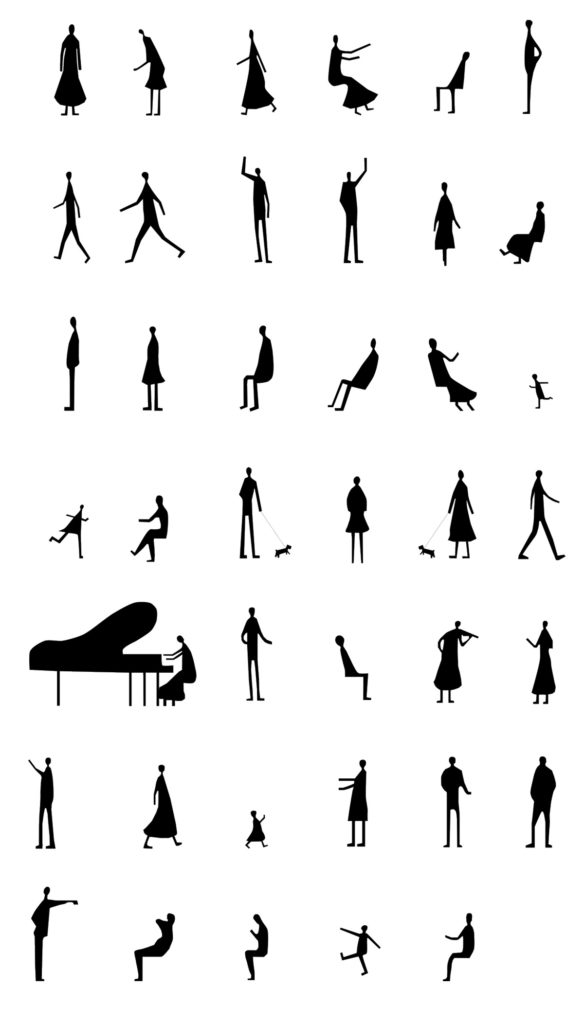
Today we created new 40 Cad Human figure / Sanaa People set of Photoshop Brushes for Architects. Months ago we added SANAA Style Human Figures Brush Pack 1. After request of Architectures we create more unique Sanaa People Silhouette Photoshop Brush in high resolution (1500 px). Happy download! enjoy your freebie.
Free People Silhouette Photoshop Brushes — Sanaa People Pack 2
The Sanaa People Pack 2 is a collection of human figure silhouette brushes for Photoshop, used by architects, urban planners, interior designers, and poster artists to add realistic scale figures to their work instantly.
What’s included:
- Human figure silhouette brushes in ABR format
- Standing individual figures (male and female)
- Walking and moving figures
- Grouped crowd silhouettes
- Seated and casual pose figures
- Compatible with Photoshop CS4 and above
Professional uses:
- Architecture visualization — adding human scale to building renders and site plans
- Interior design renders — populating room mockups with figures for scale
- Urban planning — street and plaza visualization
- Event poster design — crowd and audience silhouettes
File Info:
- 40 brush in one set
- Dimensions: 1500 pixel
- Category: Human Figure, Architect
- Available Format: .ABR files
- License: Free for personal and commercial use
- File Size: 586 KB
- Download file type: Zip
To use these you need Adobe Photoshop
Instructions:
How to install brushes (.abr files) :
-Put the (.abr) file you’ve downloaded into the folder
(on Windows)C:\Program Files\Adobe\Photoshop\Presets\Brush
(on Mac) /Users/{YOUR USERNAME}/Library/Application Support/Adobe/Adobe Photoshop ___/
-Then open your Adobe Photoshop, active brush tool, go to option palette and click on to open the brush preset picker.
(read more other ways to install)
How to use silhouette brushes:
- Install the ABR file (Edit → Presets → Preset Manager → Brushes → Load)
- Create a new layer in your Photoshop project
- Select black or your preferred color as your foreground color
- Choose the people brush from the preset picker
- Click once to stamp the figure — no dragging needed
- Scale using Transform (Ctrl+T) to fit your composition
Frequently Asked Questions
What scale should I use these brushes for architecture work? In architecture visualization, a standing adult figure is approximately 1.7m (5’7″) tall. Scale your brush stamp to match the scale of your drawing — for a 1:100 scale drawing, a 1.7cm figure is correct.
Can I flip and rotate the silhouettes? Yes. After stamping the brush onto a layer, use Edit → Transform → Flip Horizontal or rotate freely with Ctrl+T.