

 AbduDzyn
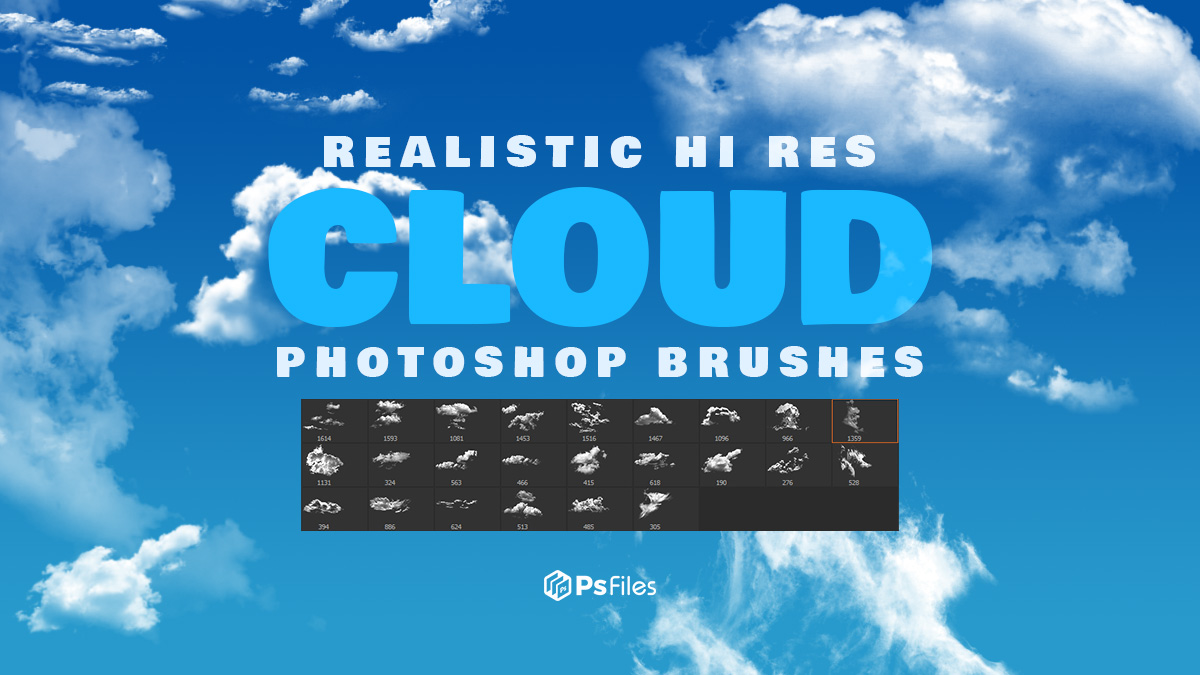
Free 24 high-resolution realistic cloud Photoshop brushes by Mila Vasileva. Mushroom cloud included.
24 Free Realistic Cloud Photoshop Brushes — Every Cloud Type
This collection of 24 realistic cloud brushes for Photoshop covers every major cloud type a photographer or digital artist needs — from bright cumulus clouds and dramatic storm clouds to soft wispy cirrus and atmospheric fog. Paint realistic skies and atmospheric effects directly in Photoshop.
What’s included:
- 24 cloud brushes in ABR format
- Cumulus clouds — fluffy, puffy fair-weather clouds
- Cumulonimbus — dramatic dark storm clouds
- Cirrus clouds — thin, wispy high-altitude streaks
- Stratocumulus — layered overcast clouds
- Fog and mist brushes — atmospheric ground-level haze
- Compatible with Photoshop CS4 and above
File Info:
- Category: Space, Sky, Fog, Architecture
- Brushes Size: 600 – 1800 px
- Available Format: .ABR files
- License: Free for personal and commercial use
- File Size: 4.3 MB
- Download file type: Zip
- To use these you need Adobe Photoshop (Official)
Instructions:
How to install brushes (.abr files) :
-Put the (.abr) file you’ve downloaded into the folder
(on Windows)C:\Program Files\Adobe\Photoshop\Presets\Brush
(on Mac) /Users/{YOUR USERNAME}/Library/Application Support/Adobe/Adobe Photoshop ___/
-Then open your Adobe Photoshop, active brush tool, go to option palette and click on to open the brush preset picker.
(read more other ways to install)
How to paint realistic clouds:
- Install the ABR cloud brushes into Photoshop
- Create a new layer above your sky area
- Set foreground to white, background to light grey (
#D4D4D4) - Use large brush size (1000–3000px) for big sky clouds
- Vary opacity (40–90%) for depth — brighter at tops, darker underneath
- Use the Smudge Tool to blend brush edges for realism
- Add a slight blue or yellow tint using a Color Balance adjustment layer
Perfect for: Sky replacement (before Photoshop’s built-in sky replacement), photo manipulation composites, fantasy and sci-fi digital art, matte painting, landscape photography enhancement, concept art backgrounds, and children’s book illustration.
Frequently Asked Questions
Should I use cloud brushes or Photoshop’s Sky Replacement feature? Photoshop’s Sky Replacement (Edit → Sky Replacement) is faster for realistic photo editing. Cloud brushes give you more creative control for digital art, compositing, and fantasy scenes where you need to paint specific cloud formations.
How do I make painted clouds look realistic? Paint multiple layers of clouds at different sizes and opacities — large faint clouds in the background, sharper detailed clouds in the foreground. Real clouds are never uniform in density.
What brush opacity should I start with? Start with 40–60% opacity and build up gradually. Never paint clouds at 100% opacity as they will look flat and fake.