 AbduDzyn
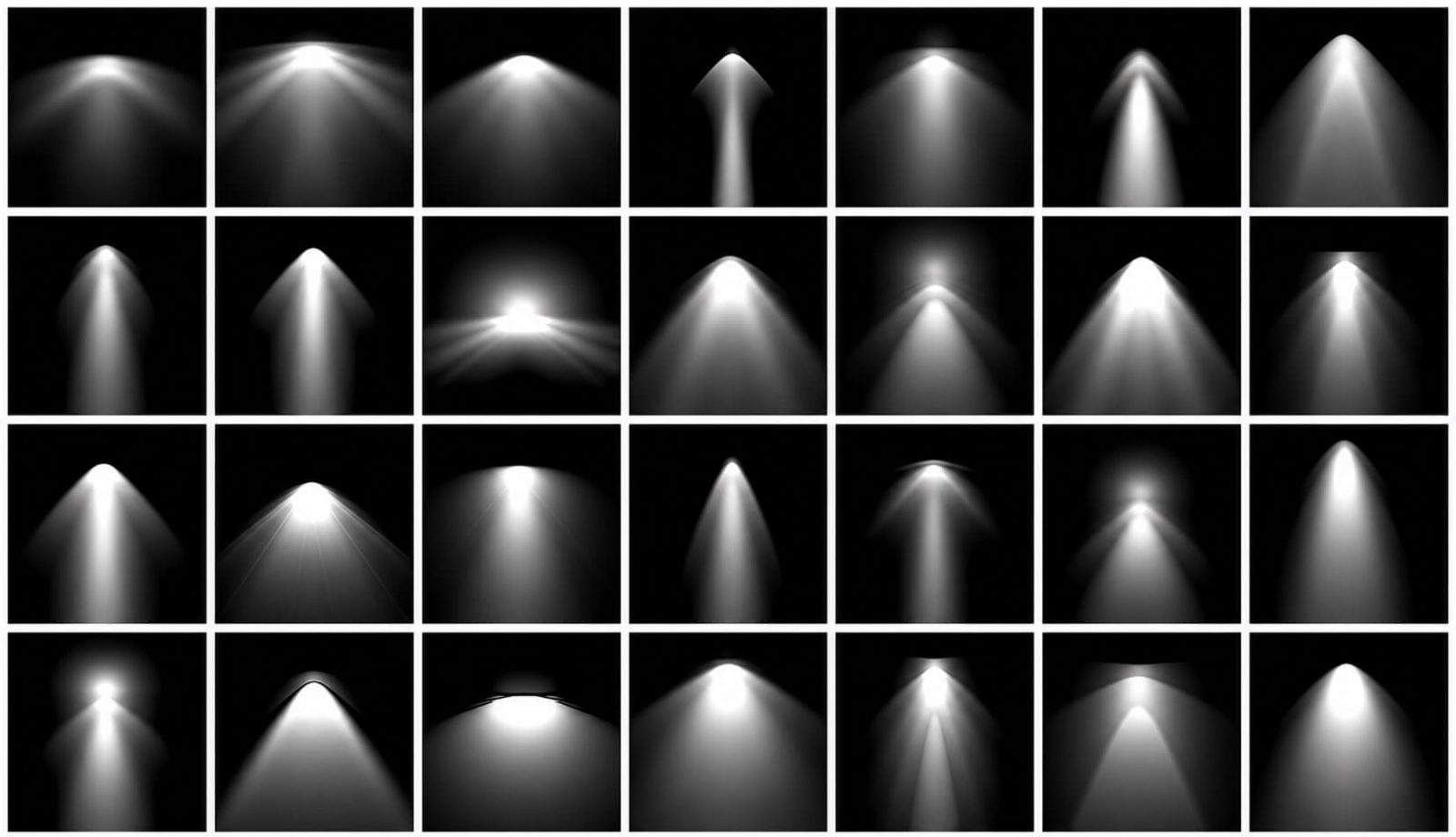
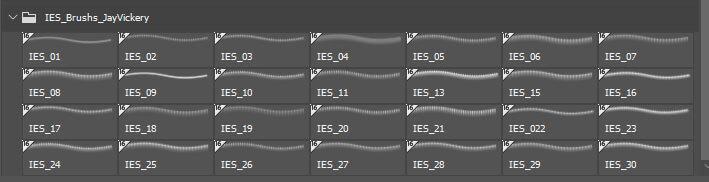
Great pack of 28 free IES Photoshop Light Brushes. You can use this spotlight brushes as photorealistic fake sun light or bright light for photography or photomanipulation. This Photoshop Light Brush created by Jamie Vickery and thanks for sharing. 2500 pixel dimension high-resolution IES brushes free for commercial uses. These free light Photoshop brushes are perfect for photo manipulation, cinematic posters, album covers, and social media creatives. All brushes are high-resolution .ABR files, compatible with Photoshop CC and newer versions.
Free Light Effect Photoshop Brushes — Flares, Glow & Rays
This free Photoshop brush set gives you instant access to realistic light effects — lens flares, glowing rays, bokeh light orbs, and light streaks — that would take hours to create manually. Simply select the brush, choose your color, and paint light effects directly onto your composition.
What’s included:
- High-resolution light effect brushes in ABR format
- Lens flare brushes — sun, studio, and natural light styles
- Glow ray brushes — radial and directional light beams
- Bokeh brushes — circular and hexagonal light blur effects
- Light streak brushes — motion trails and speed light effects
- Compatible with Photoshop CS4 and above
File Info:
- Category: Photography, Lighting Brush
- Dimensions: 2500 pixel
- Available Format: .ABR files
- License: Free for commercial use (Link to author)
- File Size: 21.3 MB
- Download file type: Zip
- Author: Jamie Vickery
- Open & edit this file easily using Adobe Photoshop (Official)
How to install Photoshop brushes:
- Download and extract the ZIP file
- Open Adobe Photoshop
- Go to Edit → Presets → Preset Manager
- Select “Brushes” from the dropdown and click “Load”
- Select the .ABR file — brushes appear in your Brush Preset Picker
- Or simply drag the .ABR file directly into an open Photoshop window
How to use light brushes effectively:
- Create a new layer above your photo set to “Screen” or “Add” blend mode
- Set brush color to white or light yellow for realistic flares
- Reduce brush opacity to 40–70% for subtle, natural-looking effects
- Use large brush sizes (800–2000px) for wide glow effects
Perfect for: Photo manipulation, concert and event poster design, sci-fi and fantasy digital art, product photography enhancement, Instagram and social media visuals, music album artwork.
Frequently Asked Questions
What blend mode should I use with light brushes? Use “Screen” blend mode for natural-looking light that blends with the background. Use “Add” (Linear Dodge) for more intense, vivid glowing effects.
Can I use these brushes in Photoshop on iPad? Yes. ABR brushes can be imported into Photoshop on iPad through the Brushes panel → Import Brushes option.
Are these brushes high resolution? Yes. These brushes are designed at high resolution (2500px+) for use in print and web projects.